How to Adjust Phone Sensitivity for Free Fire
A comfortable sensitivity setup can make it easier to control your aim and coordinate actions in Free Fire. If your camera movement feels too slow, you may want to explore the game's sensitivity settings and your HUD. This guide covers a suggested starting profile, fire button sizes and the differences between in-game sensitivity, Android display scaling and pointer speed.
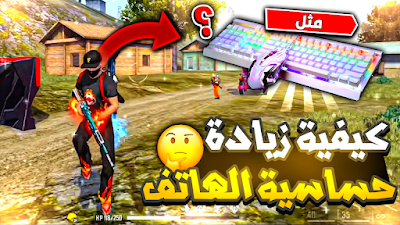
What Does Sensitivity Change in Free Fire?
In-game sensitivity controls how strongly your view or aim responds to your input. A setting that feels comfortable can help you perform a controlled upward drag or turn toward another target.
Higher sensitivity is not automatically better. If your aim repeatedly moves beyond the target, increasing it further may make control harder. Aim for a setting that lets you turn when needed and still stop accurately.
Aiming sensitivity also does not directly increase your character's running speed or remove the steps needed to place a gloo wall. Comfortable controls and practice help you coordinate those actions.
DPI and Android Smallest Width Are Different
Players often call Android's Smallest width developer setting “DPI.” Technically, Smallest width is measured in density-independent pixels, or dp. DPI describes pixel density; neither term means the screen's touch-sampling rate.
Changing Smallest width affects interface scaling and layout. It does not add physical pixels to your display or turn a small screen into a larger one. A different layout may feel different to use, but that is not proof of increased touchscreen sensitivity.
For the technical distinction, see Android's density documentation and smallest-width explanation.
If you experiment with display scaling, record your original value first so you can return to a known configuration. An unsuitable value can make the interface awkward to use. It is not accurate to describe a scaling change as automatically damaging the phone or requiring a firmware reinstall.
Does Pointer Speed Increase Finger-Aiming Sensitivity?
Android's Pointer speed setting concerns mouse or trackpad pointer movement. It should not be presented as a universal way to increase finger-touch sensitivity in Free Fire.
For example, Xiaomi documents the setting specifically for a mouse and trackpad in its pointer speed instructions. Menu names and locations vary between devices.
If you play directly on a touchscreen, focus first on the game's sensitivity and your HUD. If you use a supported pointer input, adjust pointer speed for that device rather than assuming the highest slider position is best.
Suggested Free Fire Sensitivity Settings
The original guide provides these values as a profile to try. They are starting suggestions, not measured recommendations for every phone. General 100 is the value supplied here; it should not be described as the maximum across every game version.
| Setting | Suggested value |
|---|---|
| General | 100 |
| Red Dot | 81 |
| 2X Scope | 84 |
| 4X Scope | 87 |
| Sniper Scope — moderate option | 45 |
| Sniper Scope — faster option | 65 |
Choose one of the two sniper values to test. Keep a record of your previous settings and compare how consistently you can move onto a target without passing it.
A Practical Adjustment Routine
- Save your existing sensitivity values and HUD layout.
- Try the suggested profile in training and check basic turning and aiming.
- Adjust one relevant sensitivity value at a time if the aim feels too slow or overshoots.
- Check fire button reach and drag space before changing additional settings.
- Test the setup in a match after it feels comfortable in practice.
For more gameplay and headshot advice, read Mr Weka's Free Fire improvement guide in Arabic.
Watch the Full Video Tutorial
Watch Mr Weka's Arabic video for the original explanation. Use the distinctions above when comparing display scaling, pointer speed and in-game sensitivity.